Overview
What we're launching
Quot8 is the quoting tool built into your company dashboard. It lets you respond to incoming leads with professional, itemized quotes in a few clicks, without relying on email or separate tools. You can set up reusable price presets for services you offer often, generate a quote directly from any lead, and track every quote you've sent through to acceptance.
Why we're launching it
Consumers want a clean, clear overview of their upcoming move. They want to compare quotes in a simple and easy way, having everything in one digital portal. Until now, quoting a lead usually meant stepping outside the platform, into email or a separate document, and then re-entering that information manually into your own system. Quot8 removes that detour: the quote is built and sent from the same place you're already managing the lead. This speeds up your first response and improves conversion. During a pilot with a select group of movers in the domestic markets. Those who sent their quotes through the platform saw a 7-10% increase in conversion rate compared to quotes sent through other channels.
How to use it
This guide walks through the full workflow: setting up line item presets, creating a quote from a lead, what your customer sees once you send it, and how the tool fits alongside a CRM or other tools you may already be using.
1. The Quotes Overview
All quotes you've sent or drafted live under the “Quotes” tab in the left-hand sidebar of your dashboard. This is your central overview, each row shows the Lead, Requester, Total, Status, Sent date, and Valid until date.
From this page you can also open “Manage presets” (top right) to set up your default line items, covered in the next section.
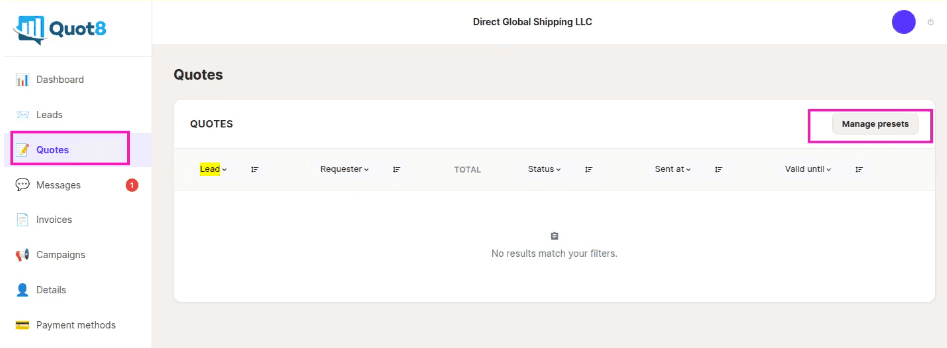
The Quotes overview, with the “Manage presets” button highlighted.
2. Setting Up Line Item Presets
Presets are commonly used line items, things you quote often, like “Packing service” or “Storage”, saved with a default price so you don't have to type them out on every quote. Saving these as presets means you don't have to retype the same entries every time you build a new quote.
How to add a preset
Open “Manage presets” from the Quotes page. This takes you to the Line Item Presets page, where you'll see all your existing presets and a form to add new ones.
Enter a Description (e.g. “Packing service”).
Enter a Default price (e.g. 500).
Select the Currency (e.g. EUR).
Click “Add preset.”
Once saved, the preset will appear as a toggleable row on every quote you create going forward, no need to re-enter it each time.
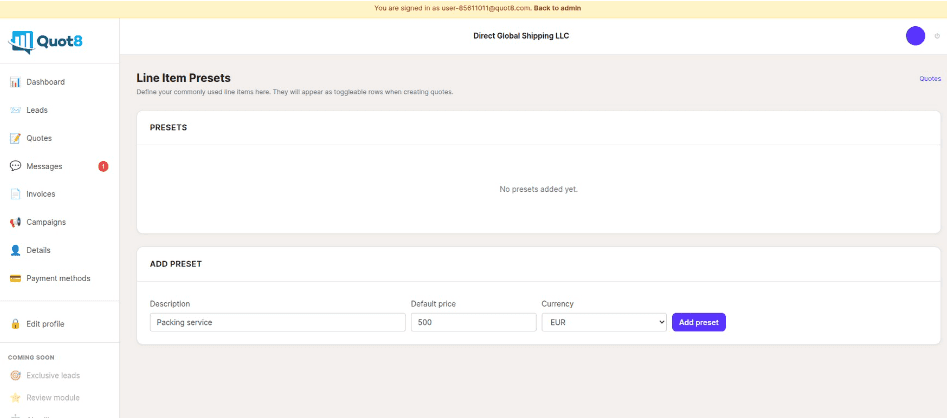
The Line Item Presets page, add a description, default price, and currency, then click “Add preset.”
3. Creating a Quote from a Lead
Quotes are created directly from a lead, not from a blank form. When a mover receives a lead, they can open it and create the quote right there, without leaving the lead view, showing the customer's move details, messages, and claim status.
On the right-hand side of the Lead detail page, find the “Quotes” panel. If no quote has been created yet, it will say
“No quotes yet” with a “+ Create Quote” button. Click it to open the quote form.
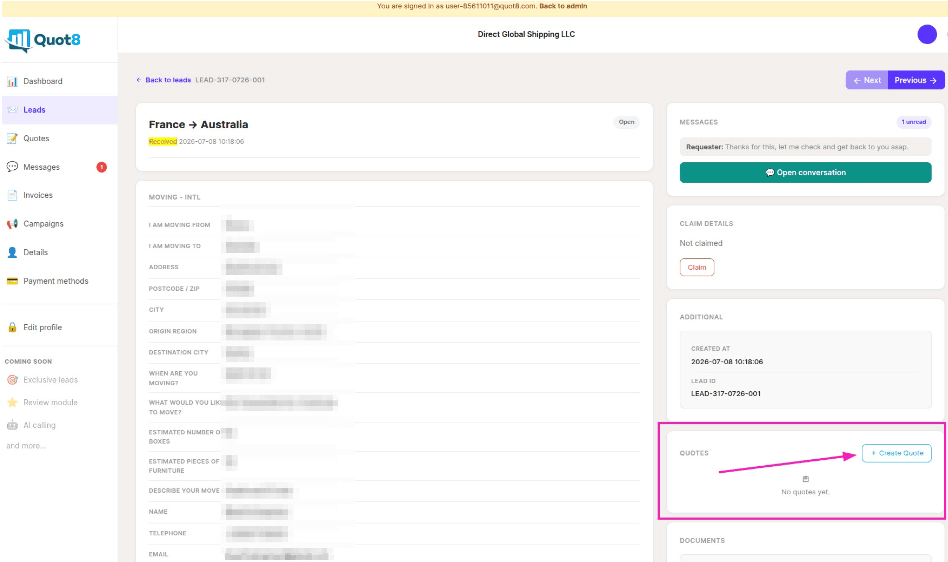
The Lead detail page, click “+ Create Quote” in the Quotes panel to start a new quote.
The quote is generated from a template set up per vertical. For international moving, for example, the template includes fields such as move type, volume, and which services are included, matching the specifics of that kind of move. Some fields are filled in automatically from the information the customer already submitted, so you only need to complete what's left.
4. Filling Out the Quote
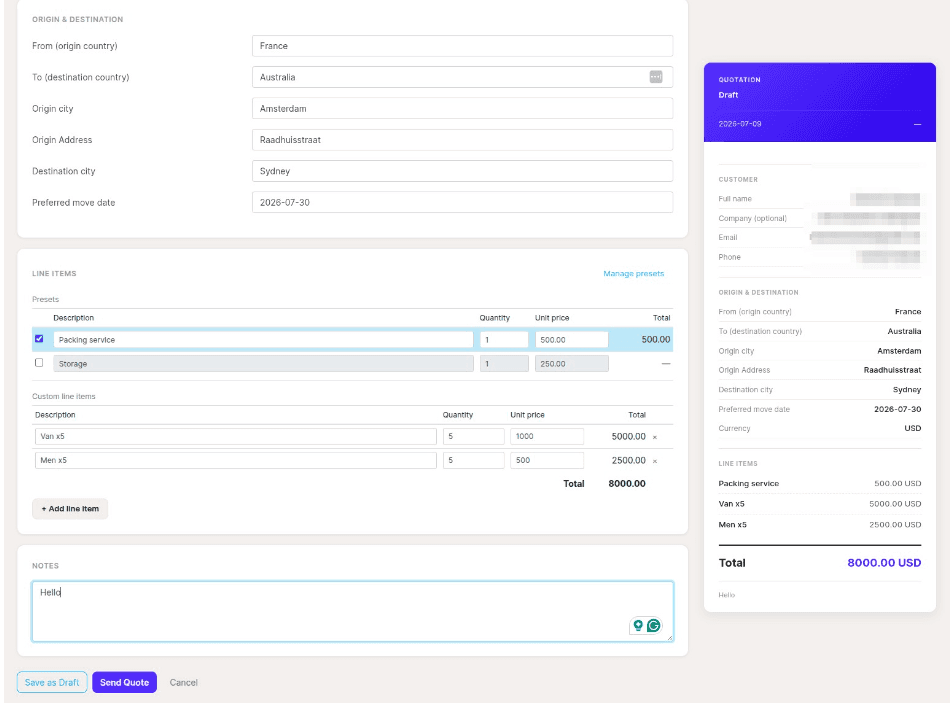
The quote form is split into two parts: an editable form on the left, and a live preview on the right showing exactly what the customer will see.The quote form: presets and custom line items on the left, live customer-facing preview on the right.
Origin & destination
These fields are pre-filled from the lead's details, origin and destination country, origin city and address,
destination city, and preferred move date. Adjust any of them if needed before sending.
Line items
Your saved presets appear at the top of the Line Items section, each with a checkbox:
Check a preset to include it on this quote.
Uncheck it to leave it off, unchecked presets are excluded from the total and the customer's copy.
Once checked, you can still edit the description, quantity, and unit price for that specific quote, without changing the saved preset default.
Below the presets, use “+ Add line item” to add custom, one-off charges (for example “Van x5” or “Men x5”).
Custom line items can be removed individually using the × next to each row. The total updates automatically as you check, uncheck, or edit line items.
Quote completeness
As you fill out the form, a completeness indicator at the top shows your progress and flags anything still missing before you can send.
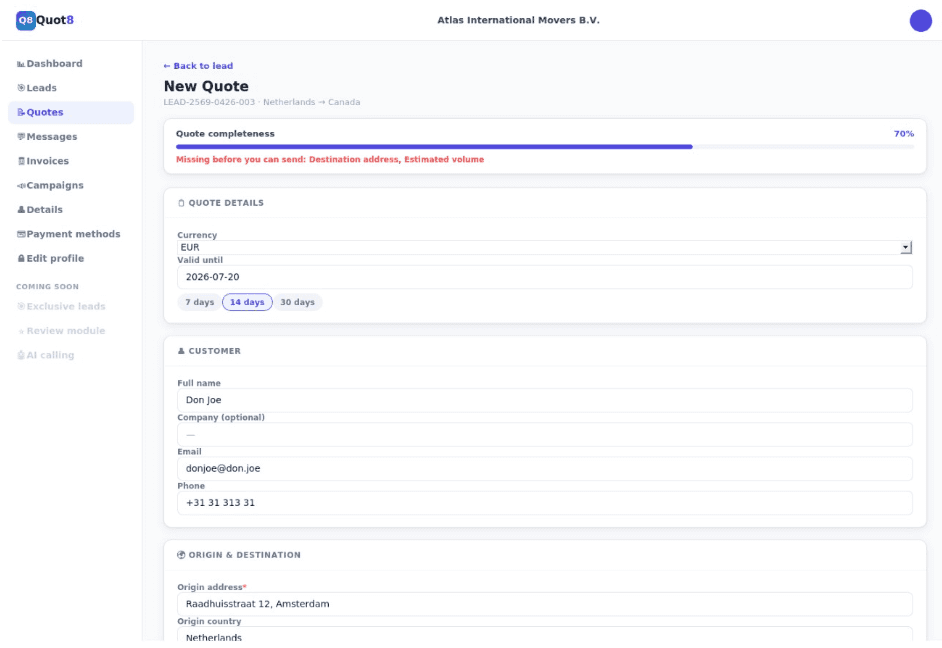
The New Quote form, with the Quote completeness indicator and required fields.
Notes
Use the Notes field to add a free-text message to the customer. This appears underneath the line items on their copy of the quote.
Live preview
The panel on the right mirrors the final quote in real time: customer details, origin & destination, currency, each line
item, the total, and your notes. Use it to double-check the quote before sending.
Save as Draft vs. Send Quote
“Save as Draft” stores the quote without sending it to the customer, useful if you want to finish it later.
“Send Quote” sends it to the customer immediately and marks it as sent on your Quotes overview.

Save as Draft or Send Quote, the customer preview updates live as you build the quote.
5. What Happens After You Send a Quote
Once a quote is sent, the customer receives an email notifying them a new quote is available. The quote also appears on the customer's own dashboard, under your company's page, where they can see the full price breakdown, the transport mode, the validity date, and your notes, along with “Accept” and “Decline” buttons. Until they respond, the quote is flagged as “Action Required” on their side.
If the requester accepts, the lead is automatically marked as accepted in the system, no manual follow-up or status update is required on your side.
You can track the status of every quote you've sent from the Quotes overview in your dashboard.
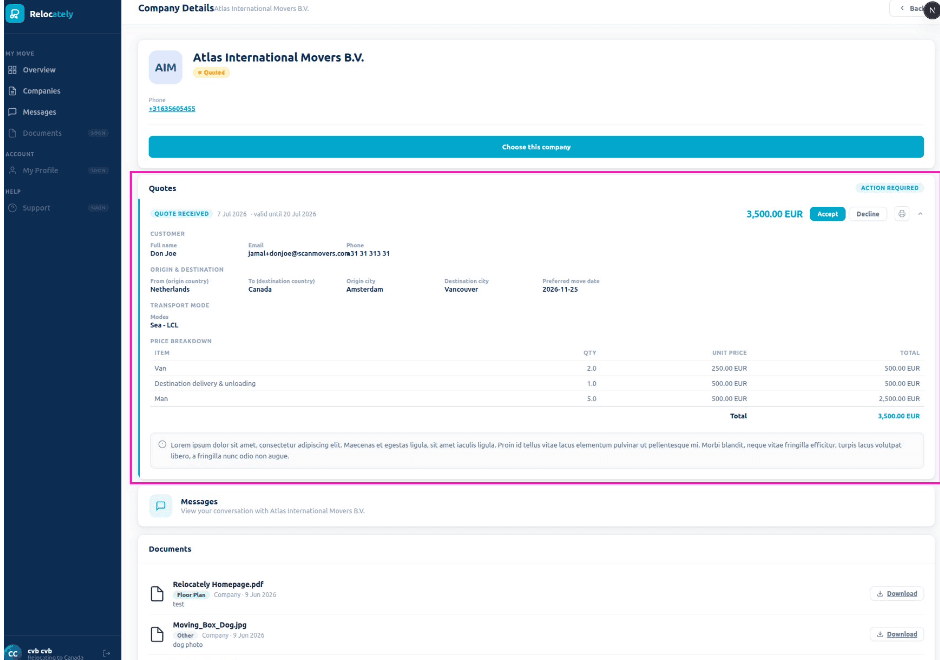
The customer's view: the quote appears on your company's page in their dashboard, with Accept / Decline options.
6. Integrating with Your Existing CRM
If you're already managing leads through a CRM, Quot8 isn't meant to replace that system, it's meant to integrate with it. Instead of exporting a lead's details, rebuilding them in your CRM, and going back and forth to draft pricing, you can bring your existing pricing straight into the portal to speed up your first response and increase conversion.
That means faster first responses on platform leads, without changing how you run your CRM for the rest of your pipeline. Once a lead is accepted, the quote details and status stay attached to it, so you always have a clear record of what was sent and when, which you can still bring into your own systems as needed.
7. Roadmap & Early Results
Sending quotes directly from the platform is one concrete step toward fewer parts of the process happening outside the platform, and more of it built into a connected system, including chat and CRM-style tooling for managing leads. Quoting used to require moving into email or a separate document just to respond to a customer; now it lives in one place.It also ties into a broader shift from pay-per-lead toward a subscription model: as more of the process lives inside the platform, movers get a fuller, more consistent set of tools to run their pipeline, rather than paying per lead for access to a channel and managing everything else themselves.
During a pilot with a select group of movers, those who sent their quotes through the platform saw an increase in their conversion rate (5-7%) compared to quotes sent through other channels.



Verkäufer
Mehr davon